How to Use zController to Turn Your Phone into a PC Game Controller
zController lets you seamlessly transform your smartphone into a fully functional, professional-grade game controller for your PC. Whether you are looking to play competitive multiplayer games, enjoy relaxed casual titles on your couch, or simulate classic console experiences, zController provides an all-in-one solution without the need to purchase expensive extra hardware.
By utilizing the advanced sensors already present in your Android device—such as the accelerometer, gyroscope, and multi-touch screen—our application offers responsive, customizable inputs. You can emulate various controller layouts including Xbox 360, DualShock 4, Nintendo Wii (now with distinct Remote, Nunchuk, and combined modes), GameCube, or an enhanced multi-mode steering wheel. This comprehensive guide will walk you through every step of the setup process, connection methods, fully custom configuration support, and enhanced screen sharing to ensure you get the absolute best gaming experience possible.
Initial Setup
Before starting, ensure you have successfully installed both the zController Desktop application on your PC and the zController Mobile app on your Android device. If you haven't, please refer to the setup guide on the Home page.
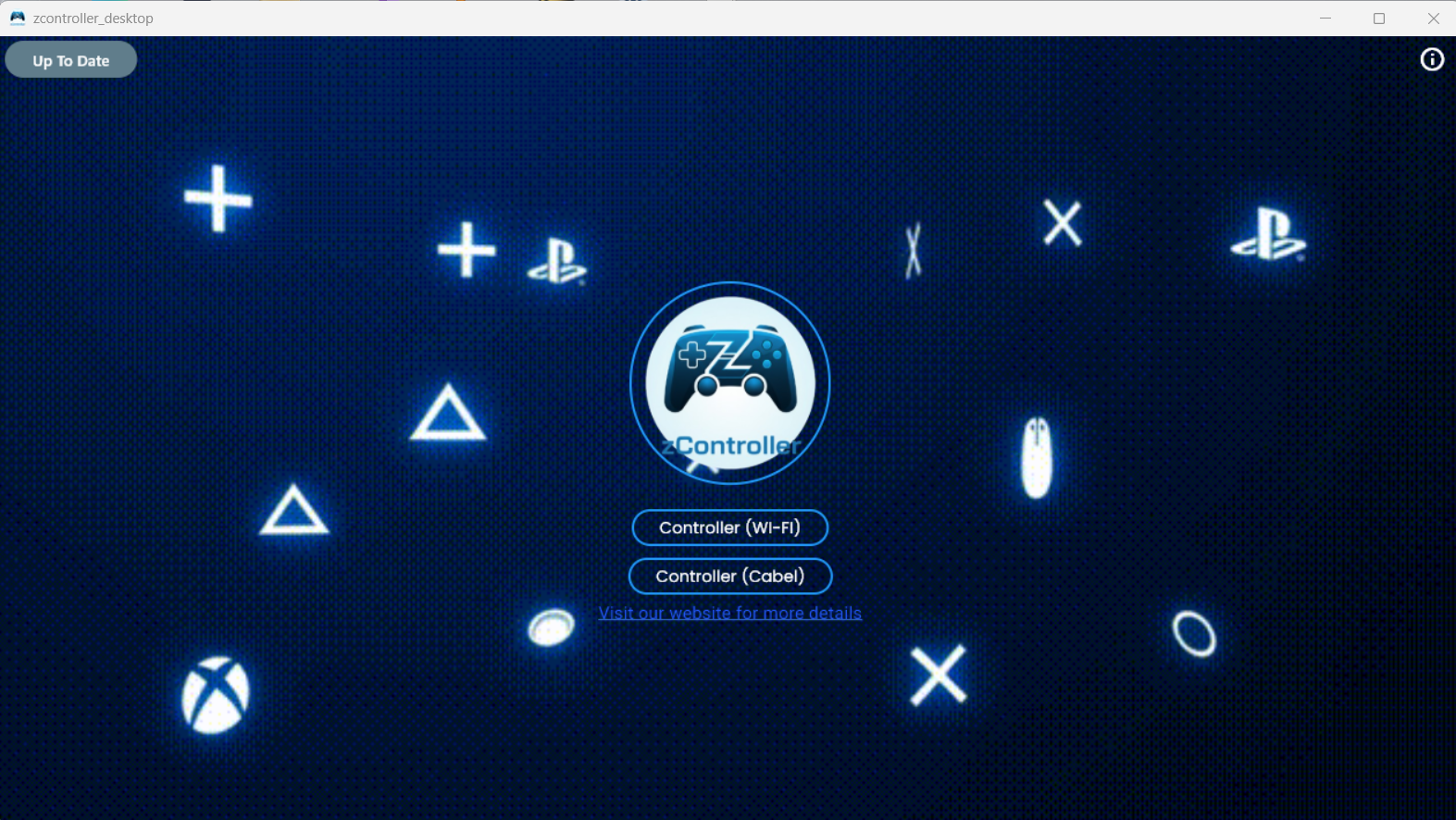
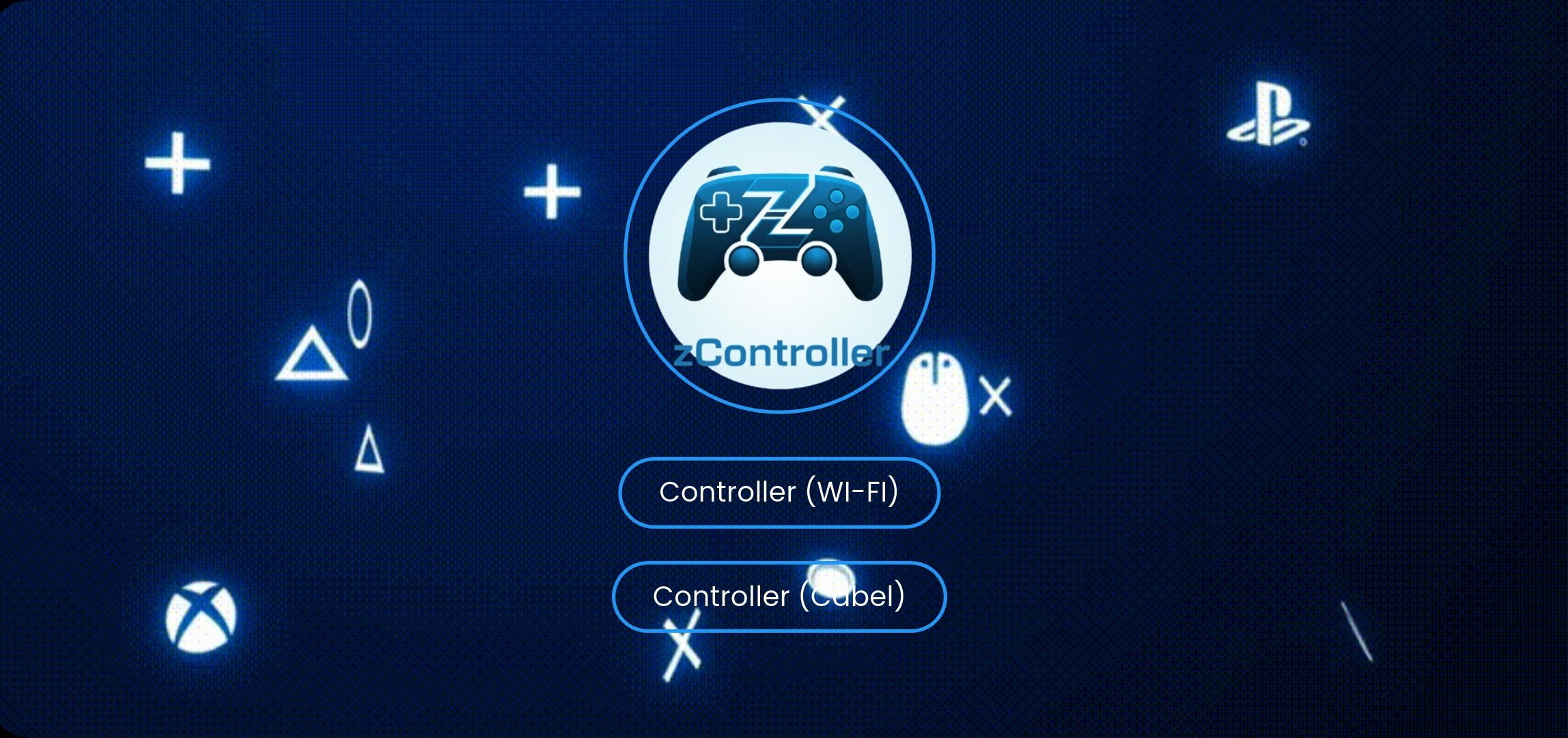
Launch both applications. You will be presented with three primary connection modes: WiFi Mode, Cable Mode, and Bluetooth Mode.
It is crucial to verify that your Windows PC meets the minimum system requirements and that you have installed the necessary ViGEmBus drivers as outlined in our home page setup tutorial. Once both the desktop client and mobile app are running, you will be greeted by an intuitive user interface designed to get you into the game as quickly as possible. Take a moment to familiarize yourself with the layout before proceeding to choose your preferred connection method.
WiFi Mode - Selection
Requirement: Connect your PC and your mobile device to the same WiFi network.
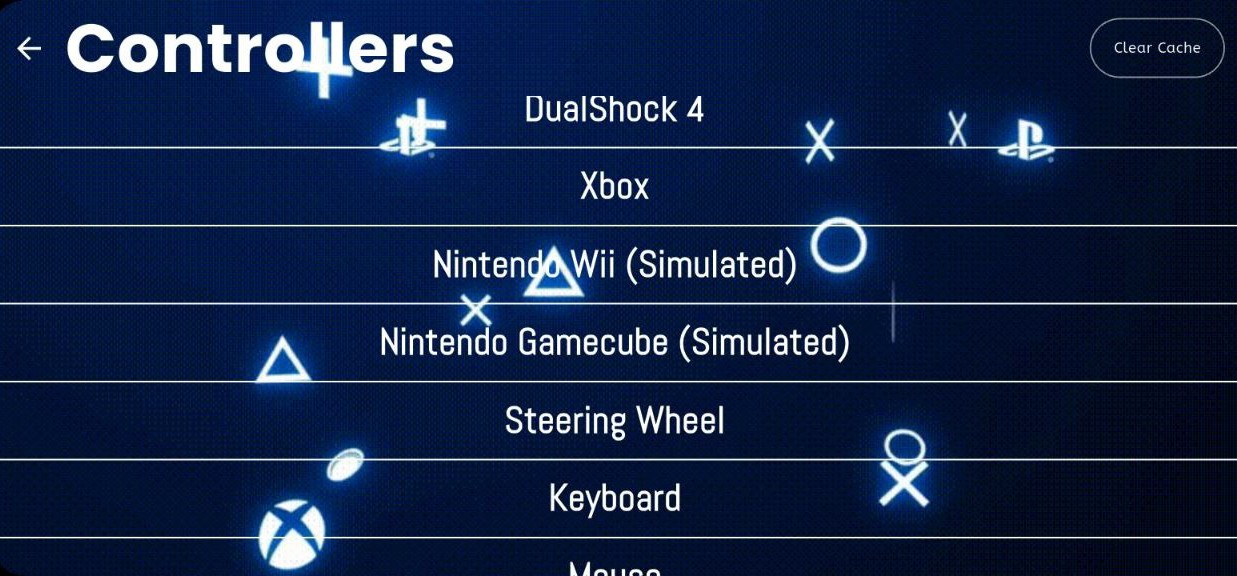
Select "WiFi Mode" on both devices. You will see a list of available controller types to emulate (Xbox, PS4, etc.).
Using WiFi mode offers the ultimate wireless freedom, allowing you to play from your couch or across the room. Ensure your router is broadcasting a stable signal. If you operate a dual-band router, connecting both your PC and smartphone to the 5GHz network band will significantly reduce latency and prevent interference from other household electronics.

Player Assignment
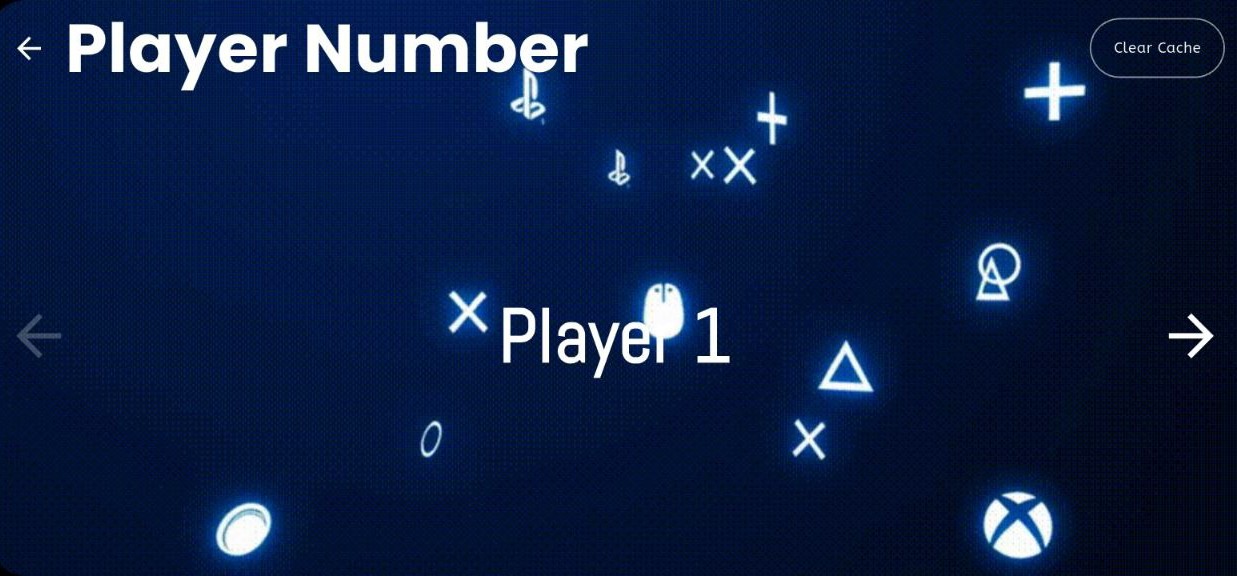
If you select a multiport controller type (DualShock 4, Xbox 360, Wii, or GameCube), you can assign a specific player slot. Select Player 1 through Player 4 to enable local multiplayer support.
establishing Connection
On the Mobile App, proceed to the connection screen. You will see prompts asking for the PC's IP Address.
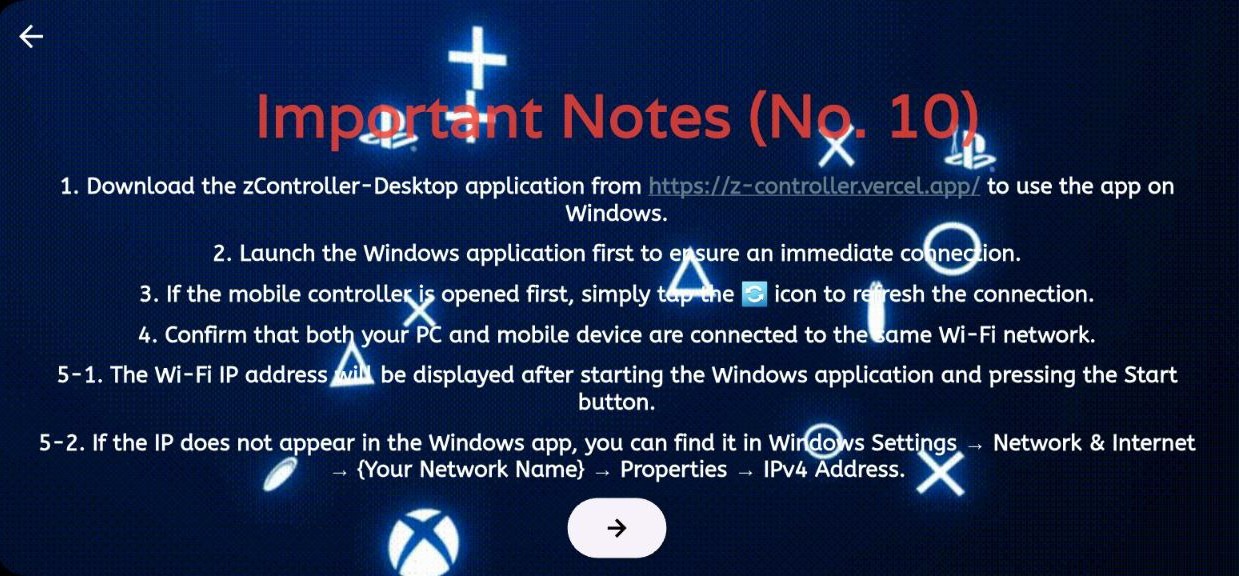
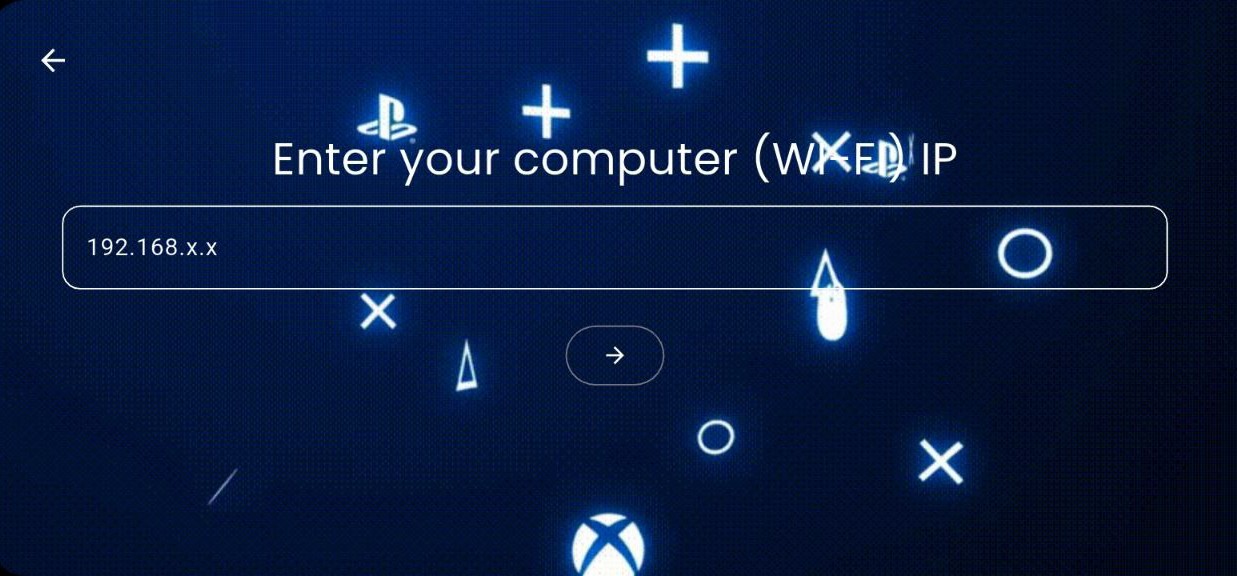
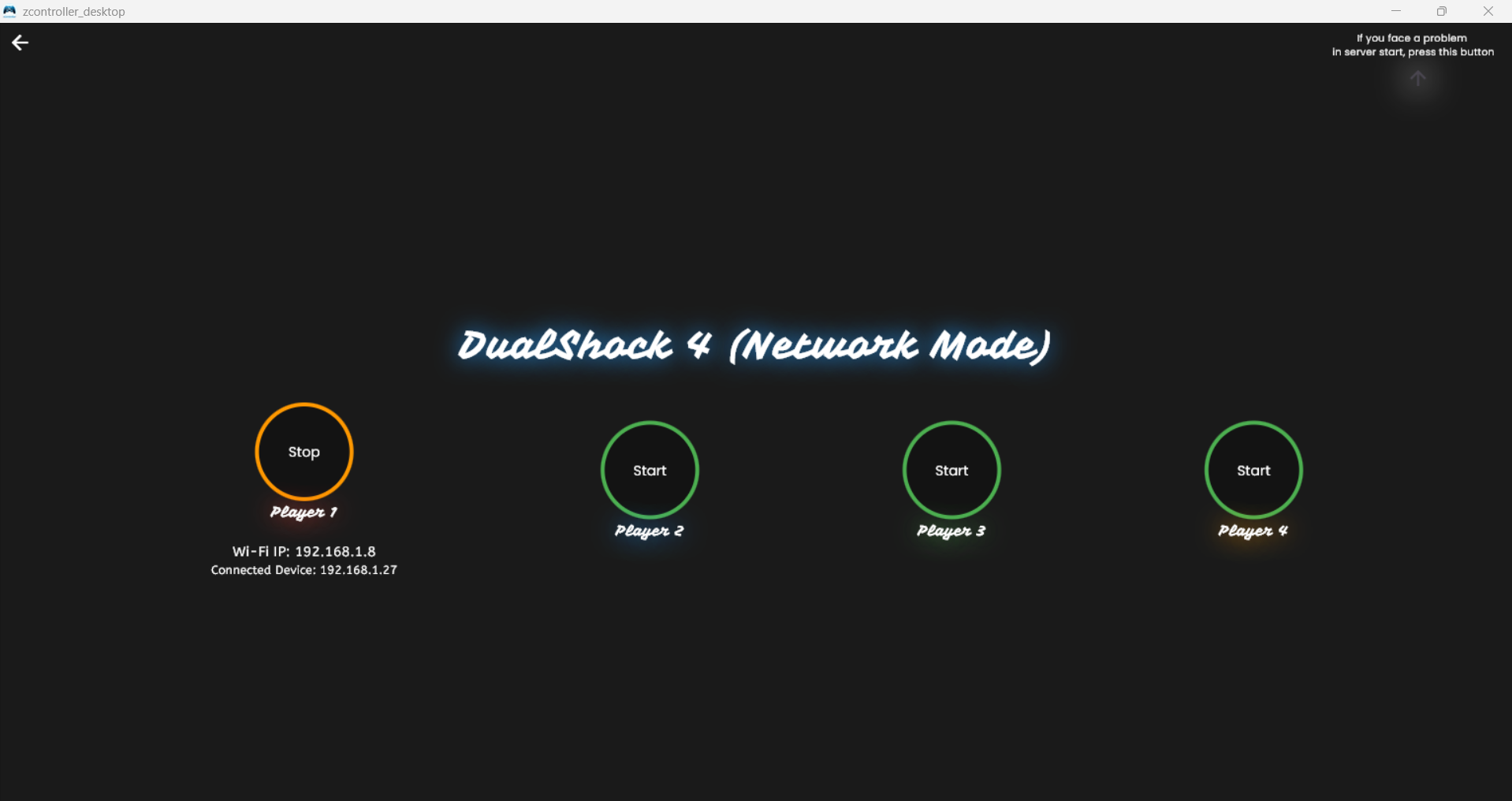
On the Desktop App, click the "Connect" button (or "Start Server") to reveal your local IP address.
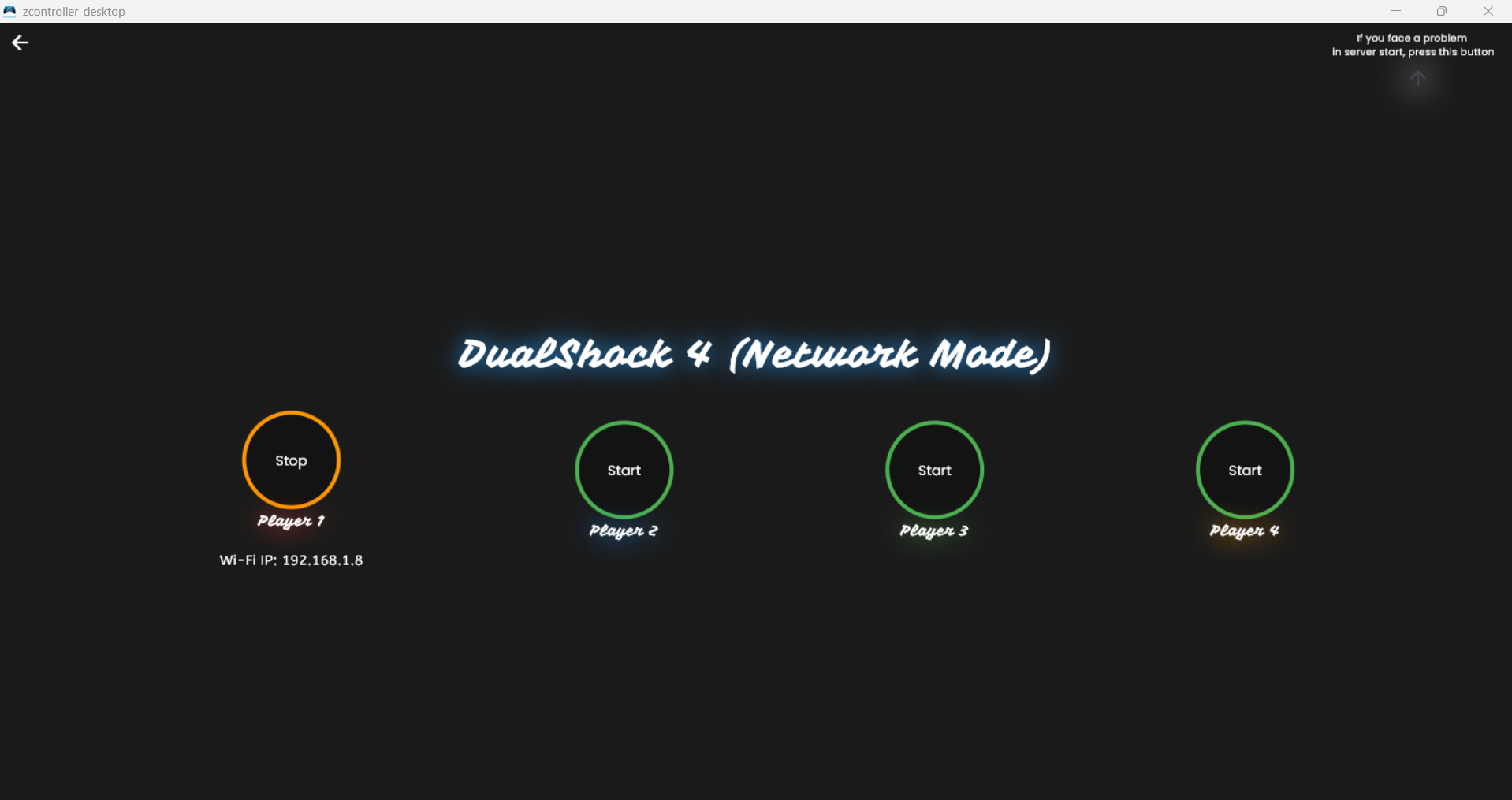
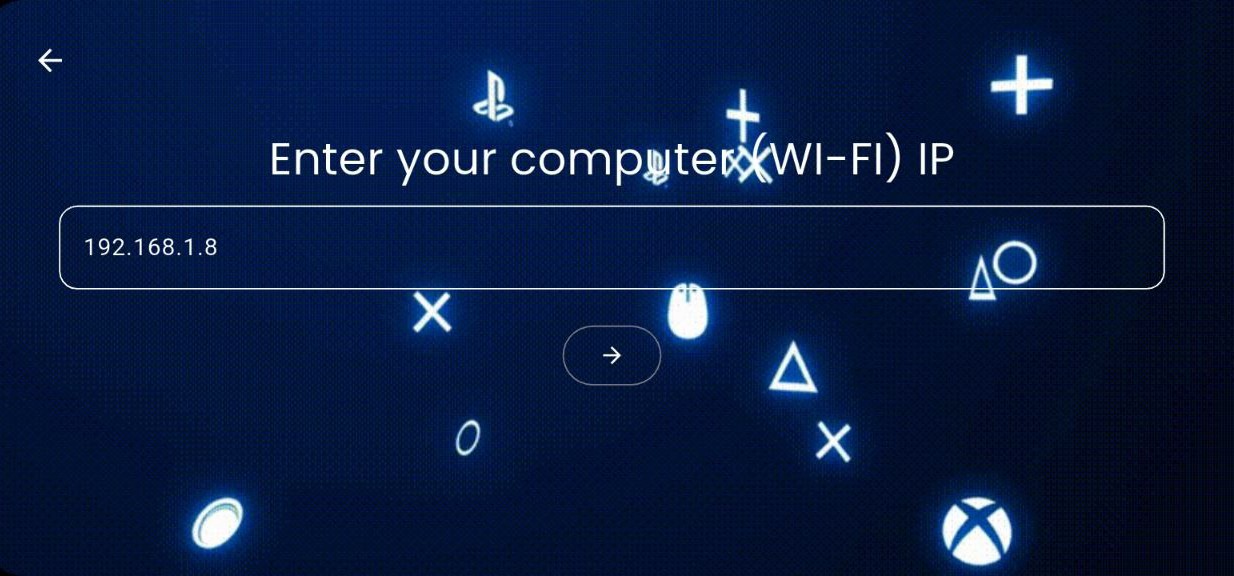
Enter this IP address into the mobile app and press the Continue button.
Alternative (New in v1.4.2): QR Code Connection
Instead of typing the IP address manually, you can now connect instantly by scanning. On the zController Desktop App, a QR code is generated next to the local IP address. Simply tap the QR scan icon in the mobile app, point your phone's camera at the QR code on your PC screen, and the connection will be established immediately.
Successful Connection
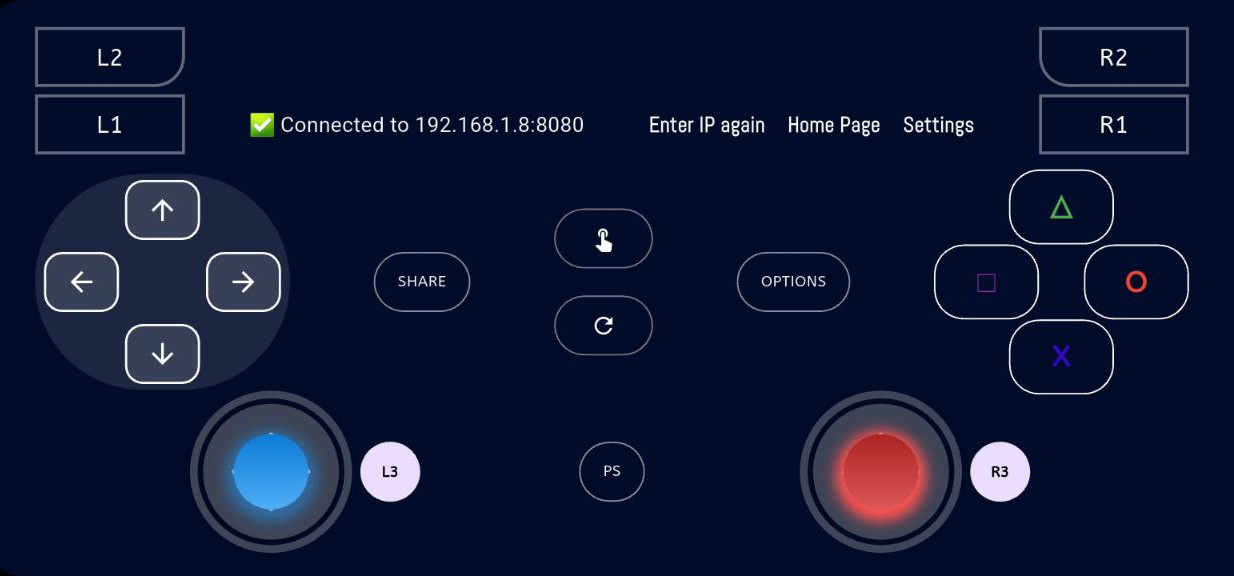
Once connected, the Desktop app will indicate a device is connected, and your mobile screen will transform into the controller interface. You are now ready to play!
Cable Mode (USB)
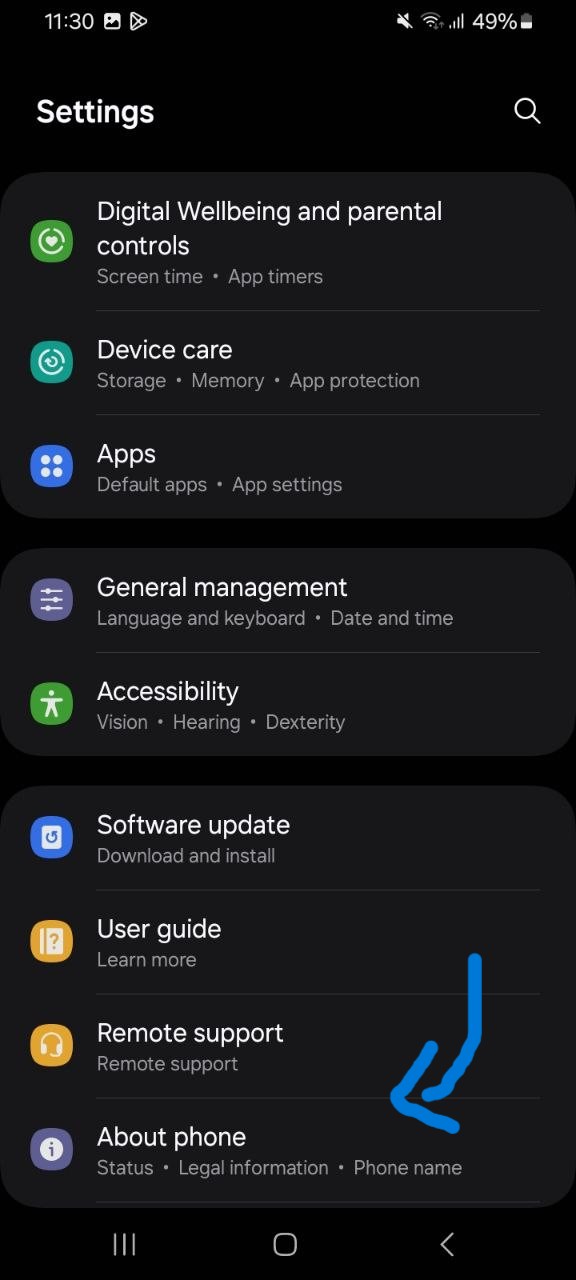
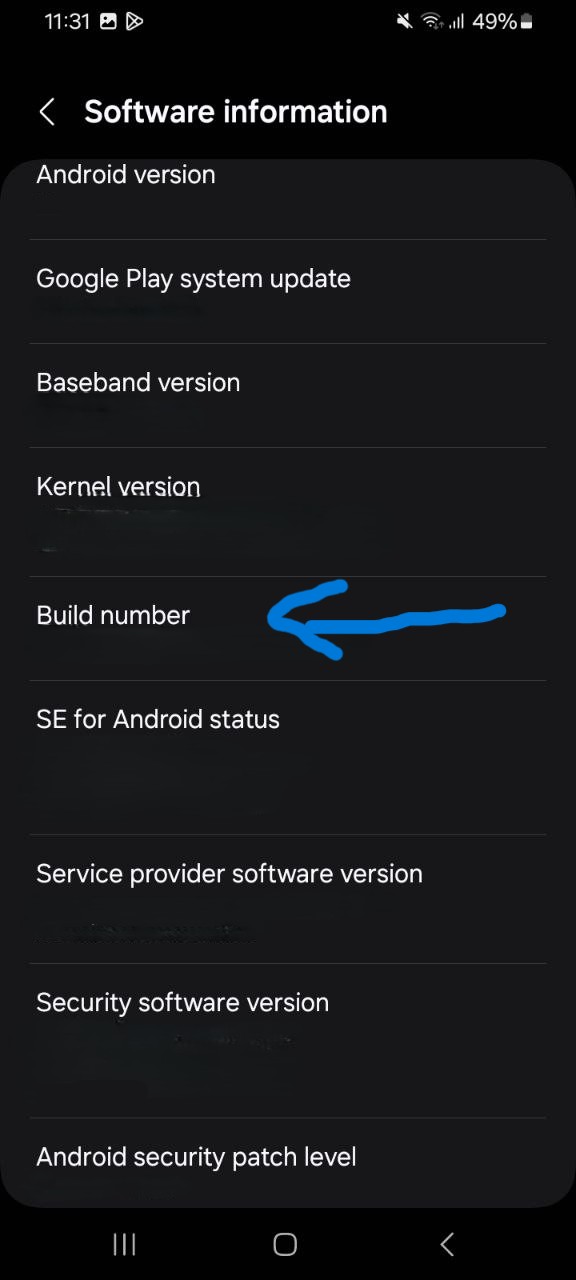
For zero-latency gaming, use Cable Mode. First, you must enable USB Debugging on your Android device. Go to Settings > About Phone and tap Build Number 7 times to enable Developer Options.
Then, go to Developer Options and toggle USB Debugging to ON.
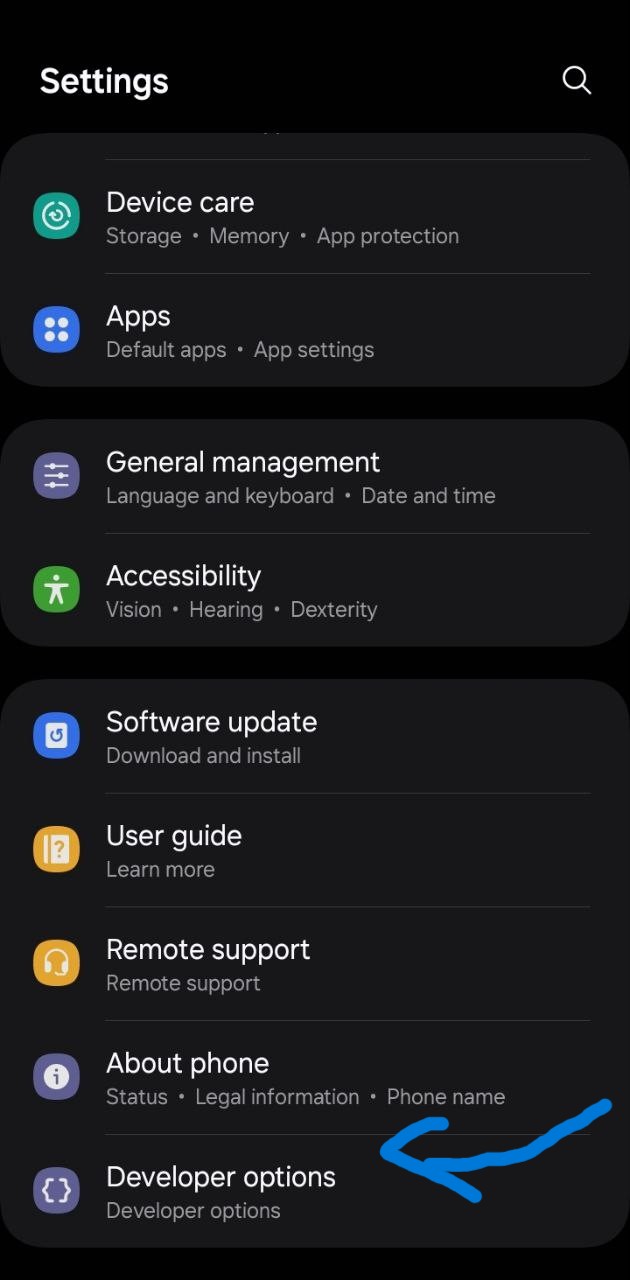

Connect your phone via USB cable using Transferring files / Android Auto mode (if required) or standard data transfer. Select "Cable Mode" in both apps. The connection is automatic; you do not need to enter an IP address.
USB Connection is highly recommended for games that require twitch reflexes and split-second timing, such as fighting games or competitive shooters. By bypassing the wireless network entirely, you achieve true zero-latency input that matches or exceeds traditional wired gamepads.
How to use screen share
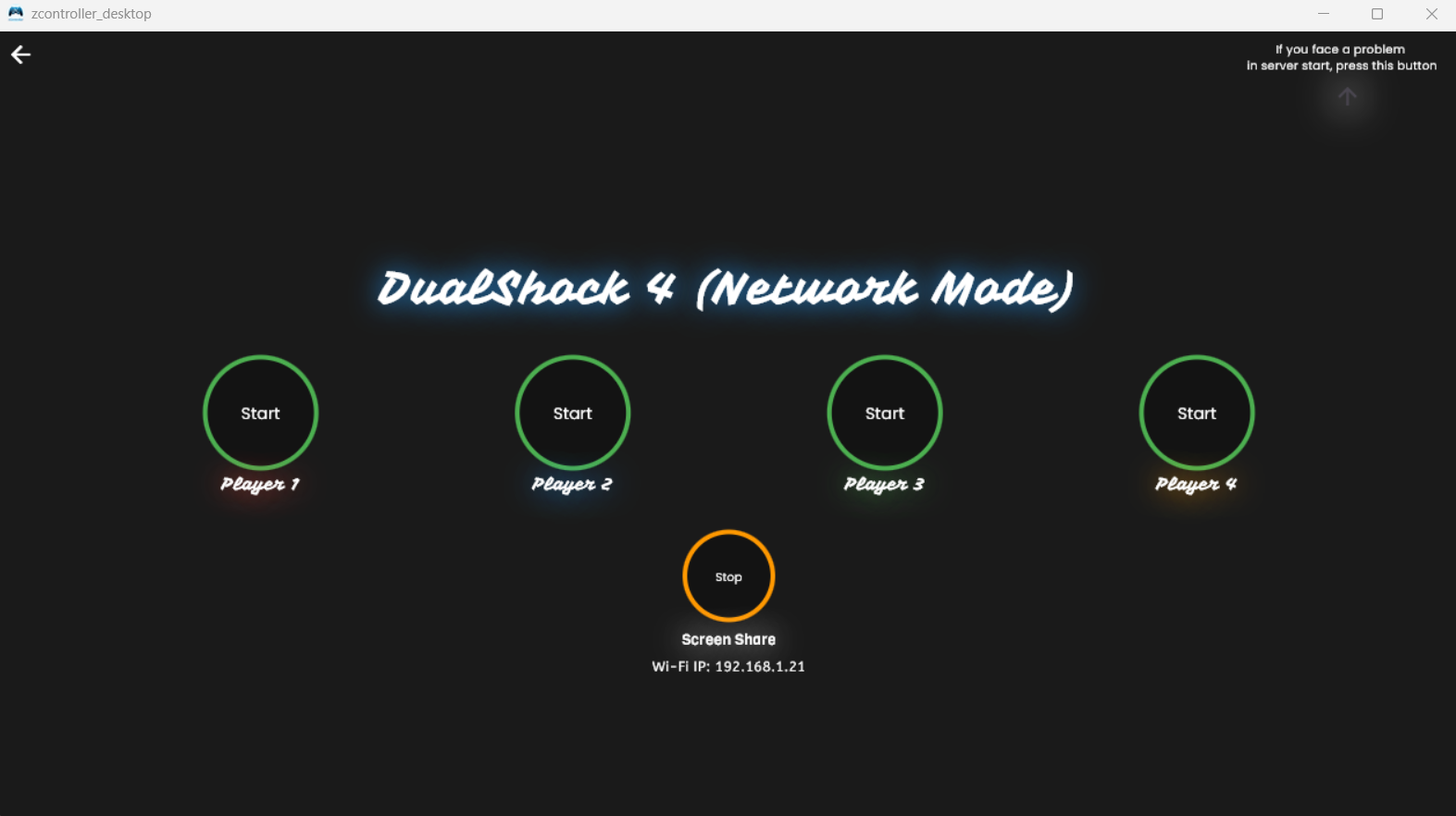
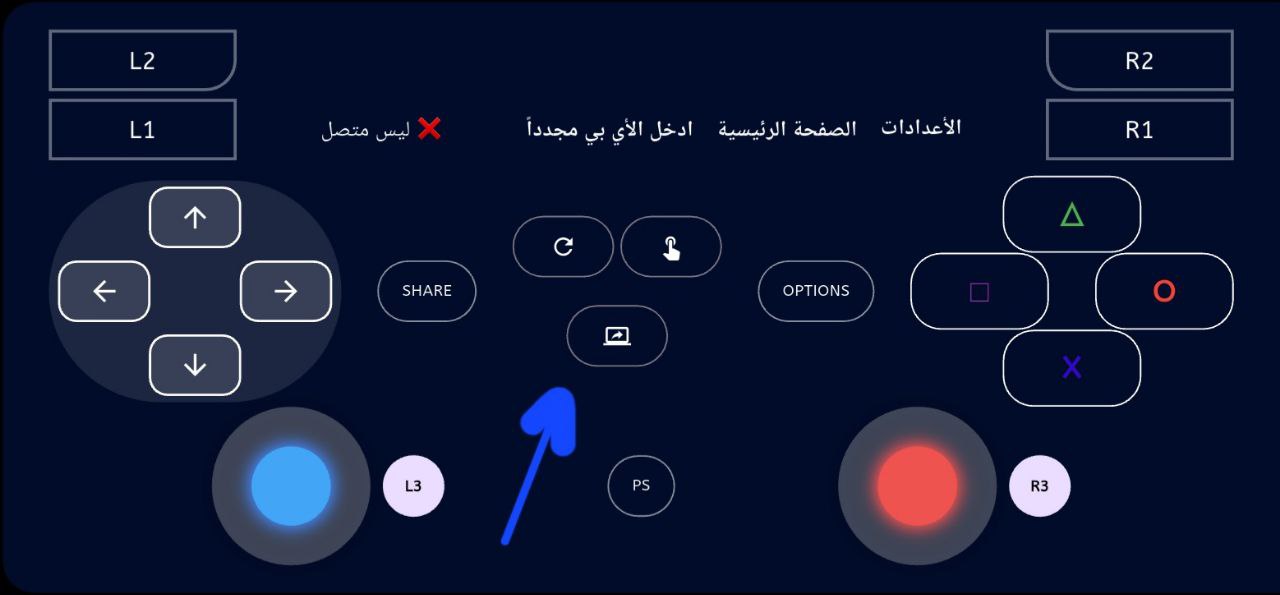
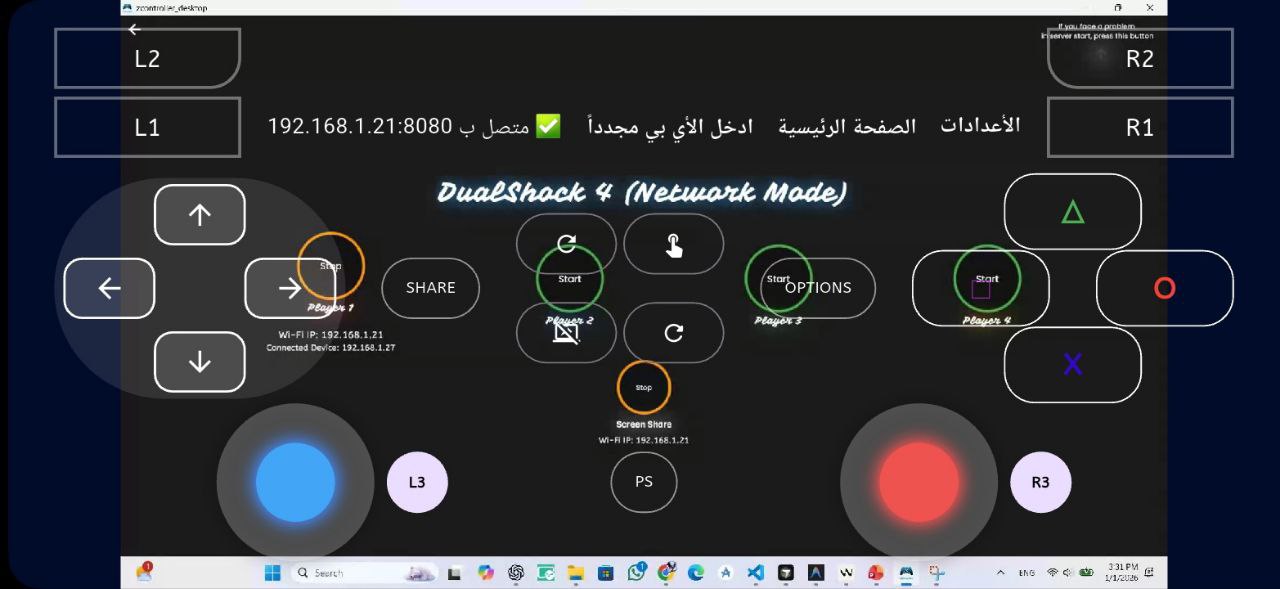
Keyboard Controller Screen Share (New in v1.4.2): Screen sharing is now fully integrated into the Keyboard controller mode. You can view your PC screen in real-time while typing or sending keyboard commands, enabling full remote PC control.
Troubleshooting & Common Issues
If you are unable to connect via WiFi, the most common culprit is the Windows Firewall blocking the connection. When you first launch the Desktop app, Windows should ask for permission to allow the app through the firewall. Ensure you check both Private and Public networks and click "Allow Access".
If entering the IP address manually doesn't work, try disabling your firewall temporarily to test the connection. Also, ensure your PC and phone are not on different subnets (e.g., one on a Guest network and one on the main network). For Cable Mode, if the device isn't recognized, try a different USB cable or port, as some cables are for charging only and do not support data transfer.
My phone isn't detected by the PC. What should I do?
First, double-check that both devices are on the exact same local network, and that you haven't accidentally connected one to a guest network. If using Windows, ensure that the zController Desktop app is allowed through the Windows Defender Firewall on both Private and Public network settings. In Cable mode, verify that USB Debugging is actively enabled.
The buttons don't respond in-game.
This usually occurs if the ViGEmBus driver is not installed correctly or needs to be reinstalled. Make sure your PC game supports Xbox 360 or DualShock 4 controllers natively. You can also test the controller inputs using the Windows built-in 'joy.cpl' (Game Controllers) utility to confirm the PC is receiving the signals.
Can I use multiple devices at the same time?
Yes! zController supports up to 4 simultaneous connections. Just launch the app on multiple smartphones, assign each one a different Player Slot (Player 1 through 4) in the app settings, and you can play local multiplayer games like Overcooked or Mario Kart with your friends using just your phones.
Performance Optimization Tips
To achieve the lowest possible latency and the smoothest gaming experience, we recommend using Cable Mode whenever possible. This eliminates wireless interference and provides a near-native controller response time.
If you prefer the freedom of wireless gaming, connect your PC via Ethernet cable to your router and connect your phone to a 5GHz WiFi band rather than 2.4GHz. The 5GHz band offers significantly higher speeds and less interference from other household devices. Close background applications on your phone that might be consuming network bandwidth or CPU resources to ensure zController gets priority.
zController stands out from basic emulation apps by providing true kernel-level driver integration, ensuring games recognize your phone as a genuine hardware controller. For the best battery life during long gaming sessions, you can dim your phone's screen brightness, as the app will prevent the device from going to sleep while connected.
Multiplayer & Motion Updates (v1.4.2): For group play, Nintendo Wii Remote 4-player support has been fixed and fully optimized to deliver a stable local party gaming experience. Furthermore, screen touch support for right analog movement in DS4, Xbox, and Keyboard modes has been introduced, allowing for alternative precise control methods directly from your phone screen.
Conclusion & Next Steps
Setting up zController is a straightforward process that unlocks a world of gaming possibilities right from your pocket. By following this guide, you should now have a robust, low-latency, and highly customizable controller ready for any PC game.
Don't let the lack of physical hardware hold you back from enjoying multiplayer sessions with your friends or diving into that new game release. Download zController today, connect your devices, and start using your phone as a powerful game controller experiencing gaming like never before!